Welcome back to our AI blogging journey! In the previous post, we tackled how to write a powerful 10,000-word blog post using ChatGPT. Now that your content is ready, let’s move on to something just as important—your featured image!
Why Featured Images Matter
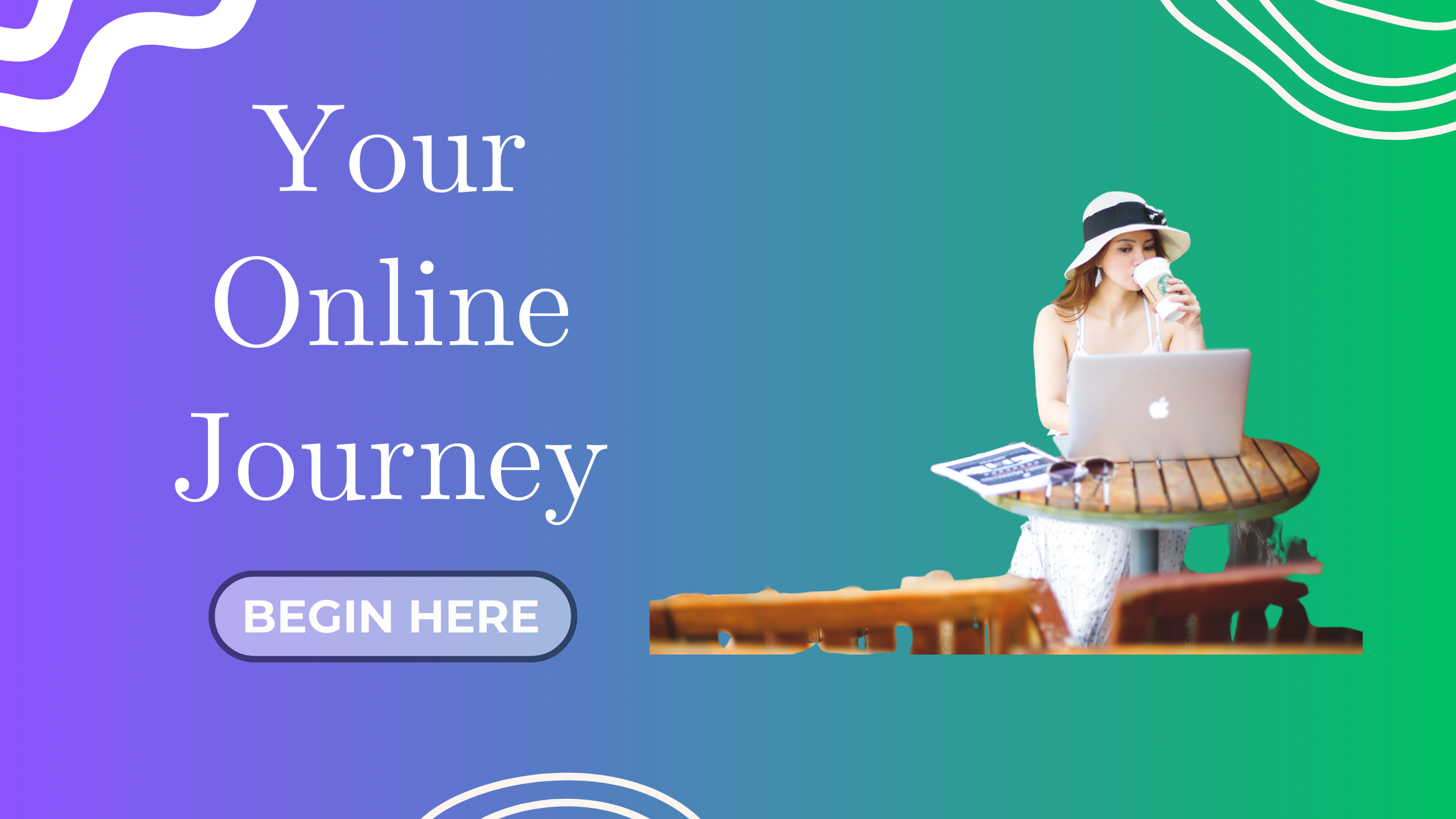
Your featured image is the visual first impression of your blog post. It appears on your homepage, in search results, on social media previews—and it can make the difference between a scroll-past or a click!
A stunning featured image helps:
-
Attract attention
-
Reinforce your branding
-
Look professional on all platforms
-
It’s not just decoration—it’s marketing!
The Power of Canva Pro (Highly Recommended!)
One of the best tools to design featured images easily is Canva. While the free version is already amazing, I highly recommend exploring Canva Pro, especially if you want:
 Access to your Brand Kit (logo, colors, and fonts in one click!) Premium templates and photos Magic Resize (resize your design to Instagram, Pinterest, etc. in 1 click!) Background remover Extra storage and folders No watermark on premium elements

Why I Recommend Canva Pro (From My Personal Experience!)
I personally used Canva Pro to design all my featured images, and I can say—it was a huge time saver and totally worth it. Here’s why:
1. Brand Kit Access
With Canva Pro, you can create a Brand Kit to:
-
Upload your logo
-
Set your brand colors
-
Save your fonts for title, subtitle, and body
This makes all your designs consistent and fast to update, especially when you’re working on many blog posts.
2. Brand Template = Your Time-Saving Hero
Another Pro-only feature I absolutely love is the Brand Template.
Instead of starting from scratch every time, you can:
-
Design one master featured image template
-
Save it under your brand template
-
Simply swap out the title, image, and minor elements for each new blog post’s feature image.
This has saved me so much time—especially as I work through a full blog series. You don’t realize how much time you’re wasting until you have to redo 5–10 images manually.
3. Background Remover = Instant Polish
Here’s a common situation: You find the perfect stock image… but the background isn’t white (or doesn’t match your template).
With Canva Pro’s Background Remover, you can:
-
Instantly clean up your image
-
Make it blend beautifully into your blog banner
-
Skip the hassle of using a third-party background removal site, downloading, re-uploading, and repeating…
If you’re doing just 1 or 2, that’s fine—but when you had to design 7+ featured images in one sitting, this feature was a lifesaver.
4. Where to Find Free Stock Photos (My Picks!)
Finding the right stock image that matches your blog’s message can be very time-consuming.
Here are my favorite free image sources:
-
Pixabay – Tons of high-quality free photos
-
Pexels – Great variety, perfect for lifestyle and tech blogs
-
Unsplash – Limited free images now; many are paid
Canva Pro also includes millions of stock photos inside the app—sometimes it’s faster to just search directly inside Canva instead of switching tabs.
Try Before You Commit – 30 Days Free!
Good news: Canva Pro offers a 30-day free trial!  You can try all the Pro features without any risk—cancel anytime before it ends.
Personal tip from me: I’m currently testing the monthly plan first to see how it fits my workflow. If it goes well, I’ll consider upgrading to the annual plan to save up to 30% depending on promotions. 
Step-by-Step: How to Create and Upload a Featured Image
Here’s my current workflow for creating and setting featured images:
Design Your Image in Canva
-
Go to Canva.com and search for “Blog Banner”.
-
Pick a template that fits your style or matches your brand vibe.
-
Customize it:
-
Apply your Brand Kit (logo, fonts, colors)
-
Replace the default image with a stock photo (remove the background if needed)
-
Add your blog title or a catchy phrase
-
-
Tweak the layout, spacing, and final alignment.
-
Save this design as your Brand Template if you plan to reuse it.
-
Download the final image (PNG recommended).
Upload It to WordPress
-
Go to your WordPress Dashboard.
-
Click Posts > All Posts.
-
Click on the blog post title you want to update.
-
On the bottom right, look for Set Featured Image.
-
Upload the Canva image you just created.
-
Click Update.
Done! Your post now looks visually polished on your blog homepage, mobile view, and even when shared on social media.
 See the Difference for Yourself
Here’s a quick comparison of my blog before and after setting featured images:
 Without Featured Images – Feels plain, unfinished, and inconsistent

With Featured Images – Instantly more professional, branded, and inviting!

(You’ll see how much visual impact a well-designed image makes)
Your Turn!
Have you tried Canva yet? Will you be using the free plan or giving Pro a spin? Let me know in the comments!